Your WordPress Site Is “Up.” So Why Did Your Client Just Call You?
Datronix · September 2026 · 11 min read
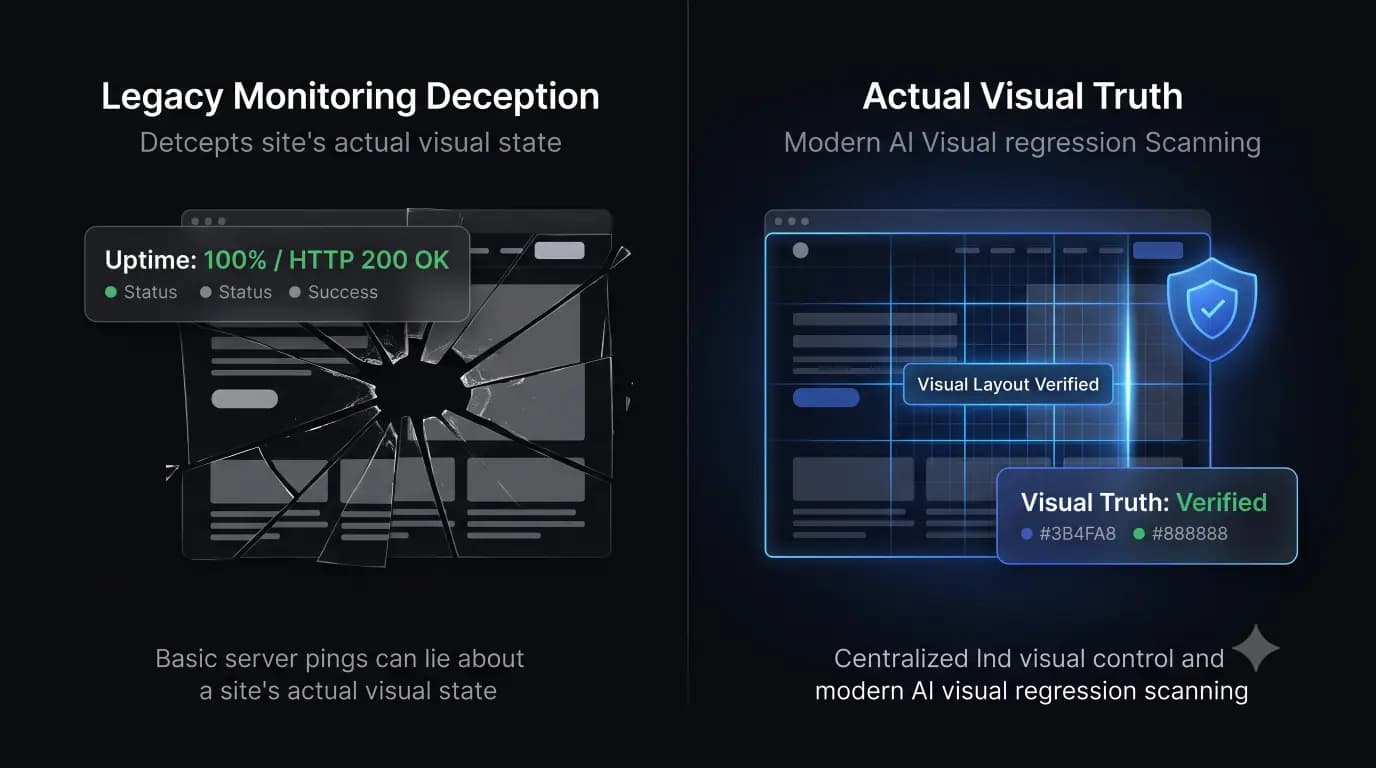
Your wordpress monitoring tool says the website is online. The HTTP status is 200 OK. Your dashboard shows 100% uptime for the week. Everything looks perfectly fine.
Then your client calls you in a panic because their homepage is broken, their primary lead form has disappeared, and nobody can check out.
If you manage a portfolio of WordPress sites, this scenario is your worst nightmare. It is the exact moment you realize that the tools you rely on to protect your agency’s reputation are actively lying to you.
There is a massive operational gap in how the web development industry defines “uptime.” We have been conditioned to believe that if a server responds to a ping, the website is healthy. But in the modern era of complex page builders, heavy JavaScript frameworks, and intricate WooCommerce checkouts, a server response means almost nothing if the frontend layout is shattered.
This guide breaks down the dangerous illusion of the HTTP 200 status code. We will explore real world scenarios where a site is technically “up” but functionally dead, and why top tier agencies are completely abandoning basic pinging tools in favor of AI driven visual verification.
The HTTP 200 Fallacy: Server Response vs Website Reality
To understand why your client called you, we have to look at how a legacy WordPress monitoring tool actually works.
Standard uptime monitors are incredibly simple bots. Every five minutes, the bot sends an HTTP request to your website’s header. It essentially knocks on the server’s door and asks, “Are you awake?” If the server opens the door and replies with an HTTP 200 OK status code, the bot logs the site as “Up” and goes to sleep.
The bot never enters the house. It never looks around. It never checks if the furniture is on fire.
This is the HTTP 200 Fallacy. It creates a dangerous disconnect between technical execution and business reality.
- Basic Uptime Monitoring Answers: “Is the website reachable?”
- True Visual Verification Answers: “Did the website change?”
When you rely on basic monitoring, your agency is blind to the actual user experience. You are assuming that if the code executes, the visual output is flawless. In the fragile WordPress ecosystem, this assumption actively destroys client retainers.
Real World Scenarios: “Up” But Completely Broken
Let us examine what actually happens on the frontend when things go wrong behind a perfectly healthy HTTP 200 status code. These are not hypothetical situations; these are the daily realities of managing a large portfolio.
1. The Disappearing Elementor Section
You execute a routine update for Elementor Pro. The update changes how a specific CSS class is rendered. The server pushes the new code perfectly (HTTP 200). However, the new CSS conflicts with your client’s custom child theme. The entire hero section on the homepage, including the primary Call to Action button, simply disappears. The site is “up,” but the client’s conversion rate instantly drops to zero.
2. The Fatal JavaScript Conflict
A performance optimization plugin updates and begins aggressively deferring JavaScript files to improve Core Web Vitals. The server is lightning fast (HTTP 200). However, the aggressive deferral breaks the JavaScript powering the mobile navigation menu. Mobile users cannot open the menu to navigate the site. The site is “up,” but 60% of your client’s traffic is functionally locked out.
3. The Silent Form Failure
A security plugin update tightens REST API restrictions. The server is fully secure (HTTP 200). But those new restrictions block the AJAX request required by Gravity Forms to submit data. A user fills out a quote request, hits submit, and the button spins endlessly. The site is “up,” but the client stops receiving new business leads entirely.
4. The Shattered WooCommerce Checkout
A minor WooCommerce update alters a database table structure. The update script times out on the server, misaligning the schema. The product catalog loads beautifully (HTTP 200). But when a user tries to complete a purchase, the checkout page returns a blank white section where the credit card fields should be. The site is “up,” but revenue generation is completely frozen.
In every single one of these scenarios, a standard WordPress uptime monitoring tool will tell you everything is fine. You will not know the site is broken until an angry client informs you. And if the client finds the error before you do, your agency has failed.
We Tested What Happens After “Update All”
At Datronix Tech, we realized that relying on legacy tools was an operational liability. We could not manage multiple WordPress sites profitably if our team had to manually click through staging environments to verify every single plugin update.
We wanted to answer a simple question: Can an agency safely operate a large WordPress portfolio without manually checking every site, and without relying on flawed HTTP 200 checks?
To find out, we stopped treating maintenance as a manual checklist. We built SiteOps, an autonomous WebOps platform, and ran a massive internal experiment. We handed over a diverse portfolio of complex client sites to the platform and let it handle the updates entirely through Visual Regression Testing.
The Visual Verification Workflow
Instead of pushing an update and checking a server ping, SiteOps acts exactly like a human QA tester.
- Before the Update: The system spins up a headless Chromium browser. It visits the live site and captures a pixel perfect, high resolution screenshot of the Document Object Model (DOM).
- The Execution: SiteOps applies the plugin updates autonomously.
- The Verification: It automatically clears the server caching layers and edge caching. The headless browser returns and takes a second set of screenshots.
- The Verdict: Artificial intelligence overlays the “Before” and “After” images. It performs a pixel by pixel visual diff.
What the AI Actually Caught
The results of replacing HTTP checks with visual verification were staggering. Out of hundreds of routine updates executed during our testing phase, the AI flagged numerous fatal errors that a basic ping bot would have completely ignored.
We found three distinct types of changes that a basic HTTP check never reported:
- Missing CSS Assets: The AI detected a caching conflict where a stylesheet failed to load post update, leaving an unstyled, text only layout.
- Hidden Elements: The AI flagged a scenario where a Z index change caused a background image to overlay and hide a primary navigation menu.
- White Screen of Death (WSoD): The AI detected a PHP syntax error that crashed the visual frontend, even though the server header still returned a 200 status for a fraction of a second before the timeout.
By utilizing AI to visually “see” the website, we eliminated the guesswork. But detecting a break is only half the battle.
The Auto-Rollback: Active Remediation vs Passive Alerts
When comparing the best WordPress monitoring tools in 2026, you must look at how the tool responds to a failure.
Let us compare the traditional agency workflow against a modern, autonomous workflow.
The Traditional Agency Workflow (Legacy Tools):
- You click “Update All.”
- You wait for the process to finish.
- You check the dashboard (It says HTTP 200 Success).
- You assume everything is okay and go home.
- The client discovers a broken checkout on Saturday.
- You spend three hours manually restoring a backup via FTP.
This traditional workflow relies on passive alerts. If a tool tells you a site is broken, it is just giving you a job to do.
The SiteOps Autonomous Workflow:
- SiteOps triggers the Scheduled Update.
- The AI visually Checks the layout before updating.
- It Executes the code.
- It visually Verifies the layout after updating.
- Detection: The AI detects that a CSS grid just shattered.
- Remediation: SiteOps instantly triggers an autonomous auto-rollback, restoring the database and files to their stable state in seconds.
- Investigation: You wake up, see a notification that a specific plugin failed the visual test, and investigate safely on a staging server.
The client never experiences downtime. You never receive an angry phone call. You can truly automate WordPress maintenance for multiple sites because the system fixes its own mistakes.
Beyond Basic Pinging: Proactive Security
The illusion of safety extends beyond just uptime and plugin updates. It also plagues how agencies handle WordPress security monitoring.
Basic security tools rely on reactive blacklists. If Google Safe Browsing flags your client’s URL for malware, the tool sends you an alert. By the time you get that alert, the SEO damage is done, and the site is already compromised.
To protect a profitable WordPress maintenance retainer, you must move to proactive defense.
Modern platforms cross reference your active plugins against global Common Vulnerabilities and Exposures (CVE) databases in real time. If a zero day vulnerability is announced for a form plugin your client uses, you need a system that alerts you before a patch is even available, so you can implement temporary firewall rules. You must catch the threat before the hacker acts.
Stop Trusting Green Checkmarks
If you manage 5 to 50 WordPress sites, checking every site manually after an update is not just annoying; it is actively destroying your profit margins.
Continuing to rely on a ManageWP alternative or a MainWP alternative that pushes blind updates based on HTTP 200 checks is an operational risk you cannot afford to take. You are putting your clients’ revenue and your agency’s reputation on the line every single time you hit the update button.
You need a platform that actually verifies its own work.
Don’t take our word for it. Open the SiteOps Sandbox and see what the autonomous visual verification workflow looks like before touching your live clients.
Managing multiple WordPress sites? Connect your first 3 sites free and run the exact same workflow on your own portfolio today.
Frequently Asked Questions
Why did my WordPress site break but the monitoring tool says it is up? Traditional monitoring tools only check for an HTTP 200 status code, meaning the server responded. They cannot see the frontend of your website. Your site could have a completely broken CSS layout, a missing checkout button, or a Javascript error, and still return a 200 OK status to a basic ping bot.
What is the difference between uptime monitoring and visual regression testing? Uptime monitoring simply asks, “Is the website reachable by the server?” Visual regression testing uses a headless browser and AI to ask, “Did the visual layout of the website actually change?” Visual regression takes before and after screenshots to detect broken layouts that server pings miss.
How do I safely update WordPress plugins without breaking the site? To achieve safe WordPress updates, never push code blindly. You must either manually test the updates on a staging server first, or use an automated maintenance platform like SiteOps that utilizes AI visual regression testing to detect layout breaks and instantly auto-rollback failed updates.
What is the HTTP 200 Fallacy in web development? The HTTP 200 Fallacy is the dangerous assumption that a successful server response (Code 200) equals a healthy, functioning website. In modern web development, a site can return a 200 status while suffering from catastrophic frontend visual or functional failures.
Can WordPress automatically update plugins safely? Native WordPress auto updates execute blindly. They push the new code without verifying if it broke the frontend layout or CSS. Safe automation requires a dedicated third party tool with visual verification capabilities to ensure production sites remain stable.
How do agencies manage WordPress updates efficiently? Top tier agencies no longer use manual staging tests for every update because they are highly unprofitable. They use automated white-label WordPress maintenance platforms that utilize AI visual regression testing to verify frontend layouts autonomously, completely eliminating unbillable human QA hours.
What happens if a plugin update breaks a client’s site on SiteOps? If an update causes a visual break, the SiteOps AI detects the layout shift during the update process. Before the end user ever sees the error, the system autonomously triggers an auto-rollback, restoring the site’s database and files to their stable pre-update state in seconds.
Why is my WooCommerce checkout blank after an update? WooCommerce updates often involve complex database schema migrations. If the script times out, or if the new WooCommerce version conflicts with an outdated custom theme template, the checkout flow will break or disappear entirely, even if the rest of the site loads fine.
How do you prove the value of a maintenance retainer every month? The best way to prove ongoing value is through an automated monthly report. Do not just send raw server data. Use AI tools to generate an executive summary that highlights the specific disasters you prevented, such as layout breaks avoided by auto rollbacks or active CVE threats patched.
Is there a tool that automatically fixes broken WordPress updates? Yes. SiteOps is designed specifically for this purpose. It acts as an autonomous WebOps agent, visually verifying updates and automatically triggering a database and file rollback if the update shatters the frontend layout.
Related Posts
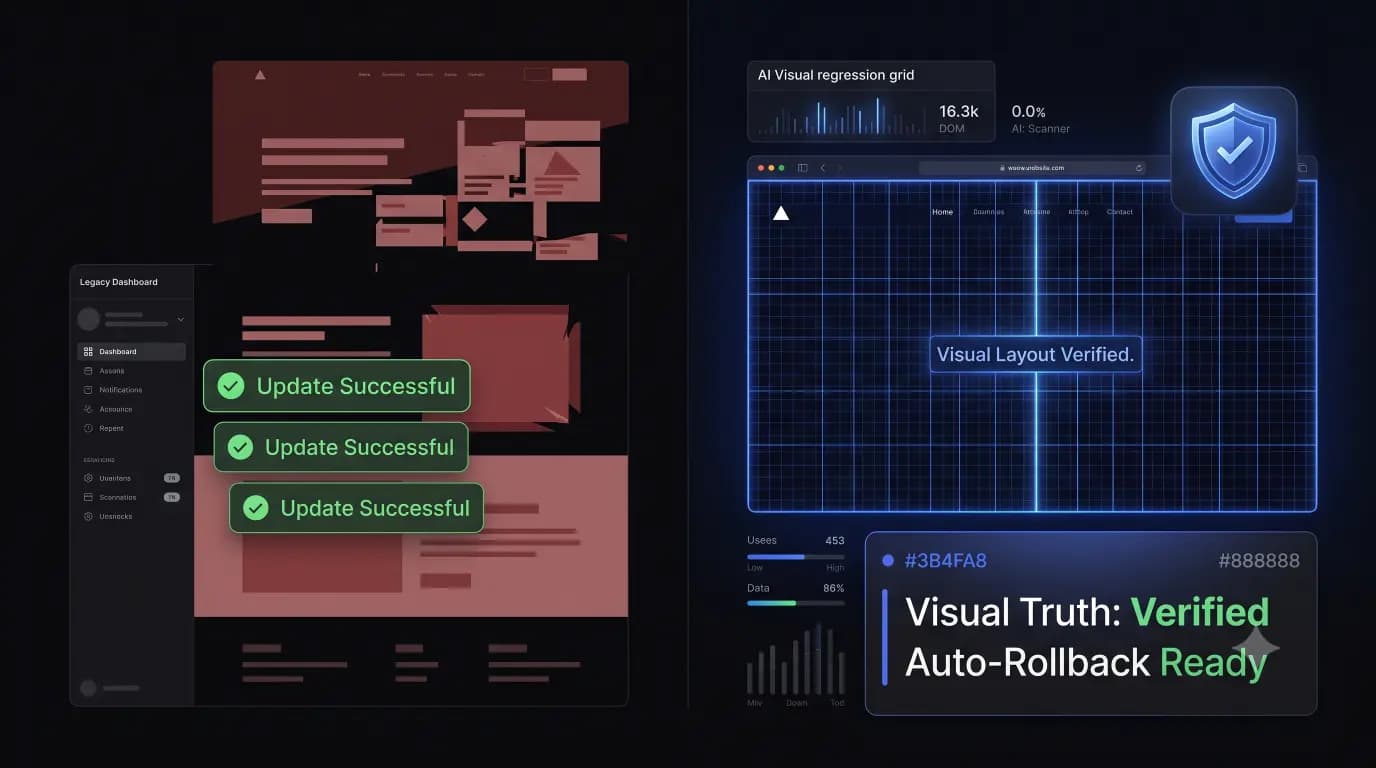
Your WordPress Updates Aren’t the Problem. What Happens After “Update All” Is.
It is Friday afternoon. You log into your command center. You click “Update All.” Forty-seven client sites report successful plugin updates. Everything in your management dashboard looks green. The progress bars hit 100 percent. You close your laptop with confidence and go home for the weekend. Monday morning, your highest-paying e-commerce client calls you in […]
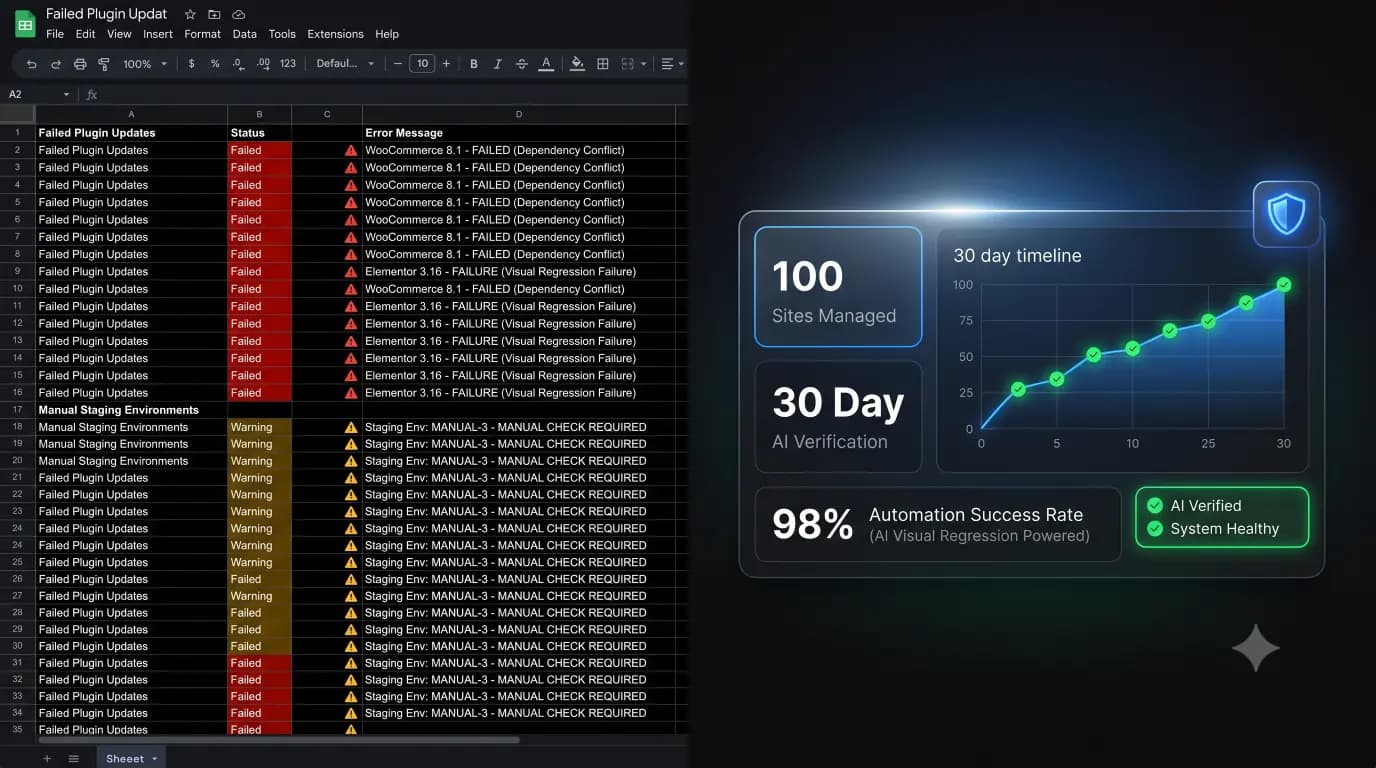
We Managed 100 WordPress Sites With AI for 30 Days: Here is What Actually Broke
We stopped treating WordPress maintenance as a manual checklist and tested what happens when updates, security, uptime, and visual verification are handled autonomously from a single WebOps platform. The WordPress maintenance industry is built on a dirty secret. If you are paying an agency a flat monthly fee to “keep your site updated,” there is […]